Settrade API Setup (Thai SET Stock Market)
Connect KhunQuant to your Thai stock brokerage account via the Settrade Open API — allowing portfolio tracking and order execution for SET-listed securities.
Overview
Settrade API works through your Thai broker. You register your API access directly from your broker's trading platform, then paste the credentials into KhunQuant. No separate developer portal registration is required.
Unlike crypto exchanges, stock market withdrawal (cash transfer out) is NOT available via the Settrade API — the API only supports trading. However, still configure permissions carefully as trade access is real money.
Prerequisites
Before you start, confirm you have:
- An active trading account with a Settrade-connected broker
- Your broker's trading PIN (6-digit PIN used to confirm orders)
- Your broker ID — a 3-digit code from the Settrade Broker List (e.g.
023for InnovestX) - Your account number from your broker
Not all brokers support the Settrade Open API, and support may differ between Equity and TFEX (Derivatives) trading.
To check which brokers support Open API for Equity, TFEX, or both — visit the official Settrade broker comparison page:
settrade.com/th/services-and-tools/brokers
Look for the "Settrade Open API สำหรับหุ้น" and "Settrade Open API สำหรับ TFEX" columns in the broker table. A blue checkmark (✔) means the broker supports that feature.
For the full broker list with 3-digit broker codes, see developer.settrade.com/open-api/document/broker-list.
Part 1 — Connect via Your Thai Broker
Register your Settrade API access directly from your broker's platform. The example below uses InnovestX — the steps are similar for other supported brokers.
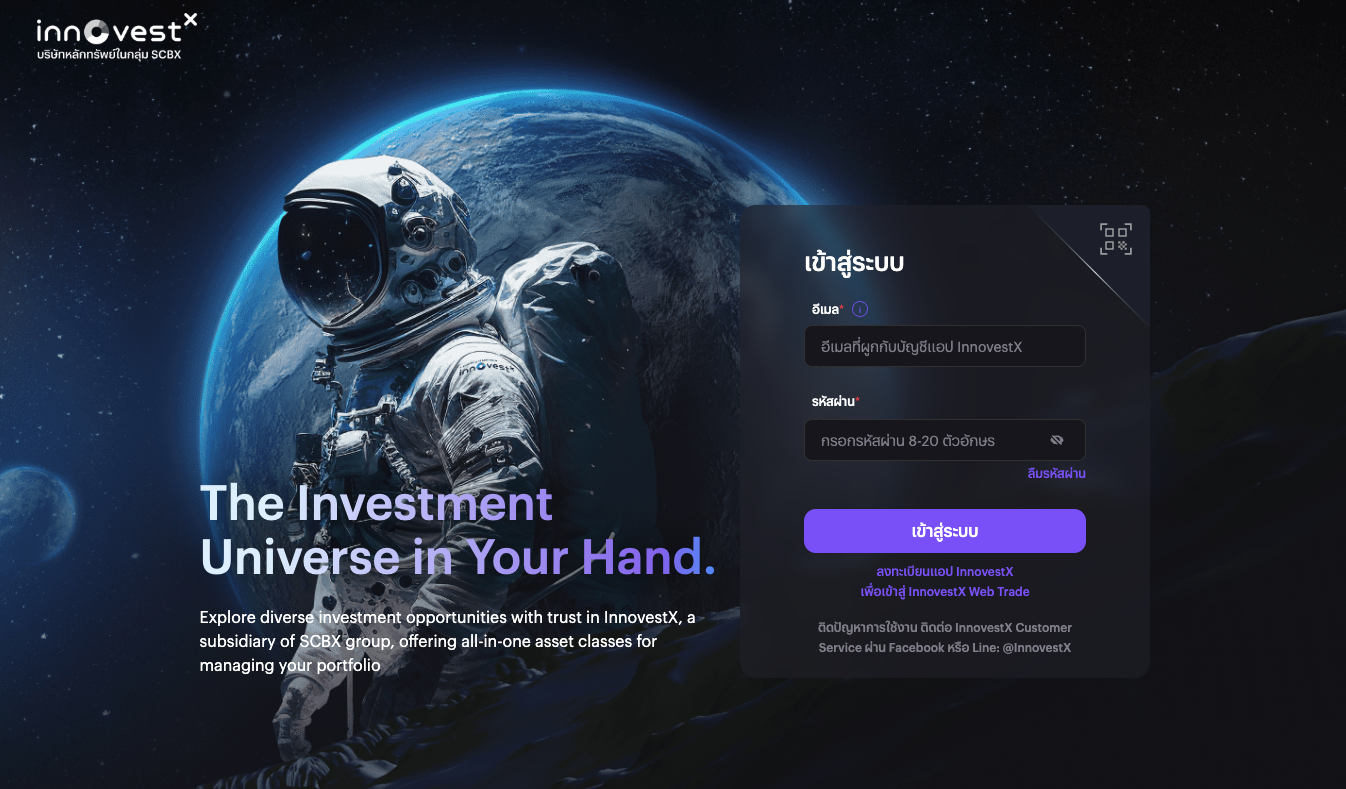
Step 1 — Log in to Your Broker
Go to your broker's trading platform and sign in. For InnovestX:
https://trade.innovestx.co.th/
Step 2 — Go to the API Portal and Connect to Settrade
Navigate to the API Portal tab in your broker's platform:
https://trade.innovestx.co.th/api-portal/set
Click Connect to Settrade to submit your API access request.
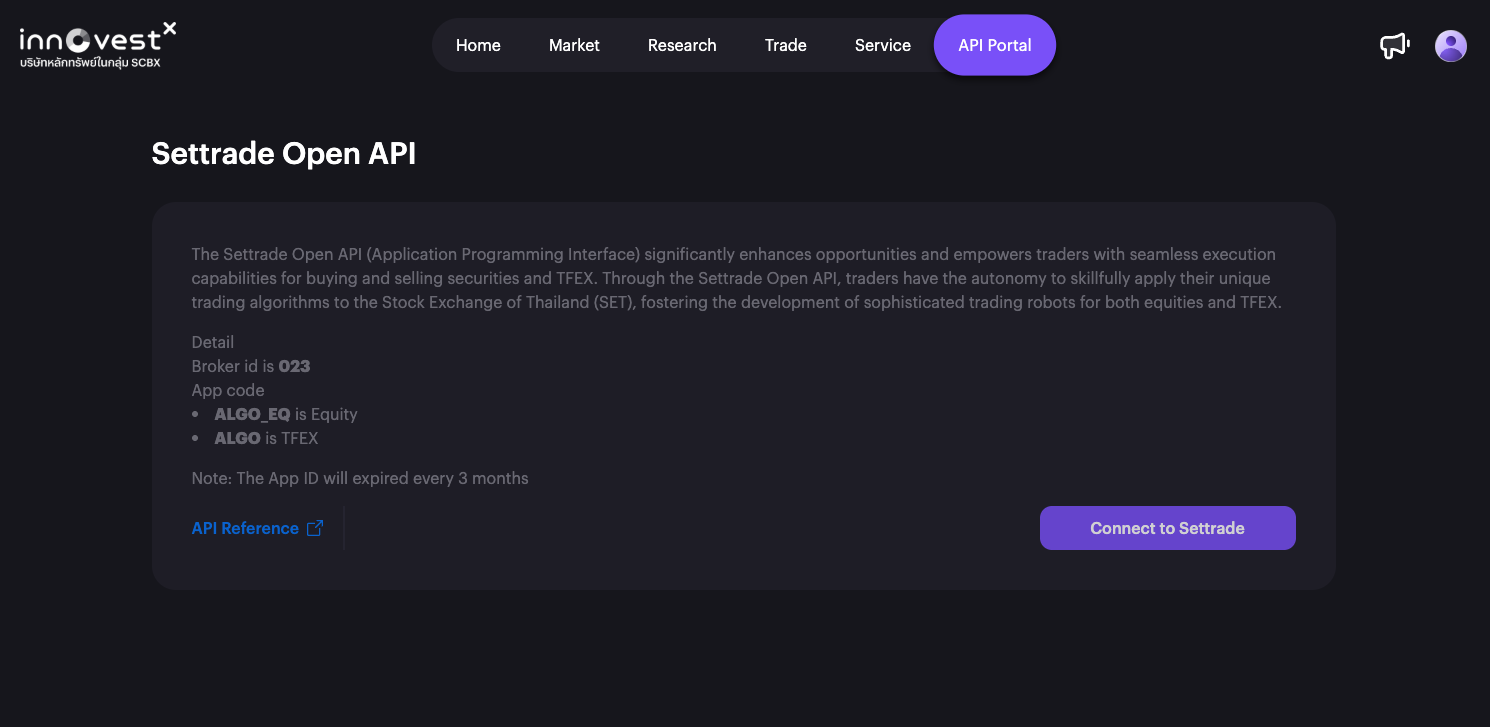
For new requests, InnovestX may take up to 7 business days to approve your API access. If it takes longer, contact InnovestX customer support directly.
Step 3 — Copy Your App ID and App Secret
Once approved, your credentials will appear on the same API Portal page. Copy both your App ID and App Secret and keep them somewhere safe.
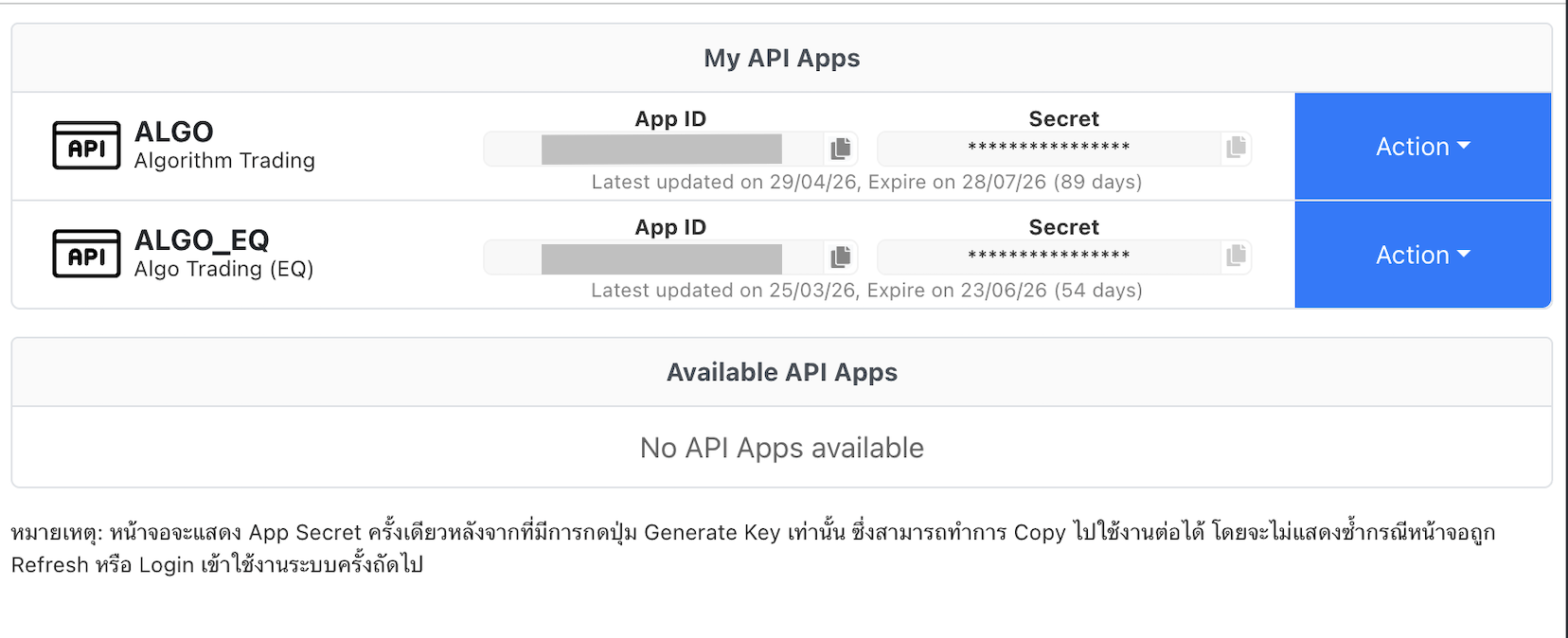
You can find App ID and App Secret in the Settrade Open API documentation as well.
Tip: If you are already logged in to the Stream by Settrade website, navigating to that page will show your credentials directly — no extra login step needed.
Your App ID and App Secret are rotated every 3 months for security. When they expire, return to this page to generate new ones and update KhunQuant.
Part 2 — Add to KhunQuant
Settrade credentials are split between two places: secrets go through the web UI, and non-sensitive broker details go in config.json.
Step 4 — Add Secrets via Web UI (Recommended)
Open KhunQuant's portfolio settings in your browser:
http://localhost:18800/portfolios/settrade
Fill in the three secret fields:
- App ID — from your broker's API portal (this is your
api_key) - App Secret — from your broker's API portal
- Trading PIN — your 6-digit PIN from your broker
Click Save. KhunQuant automatically encrypts all three values with enc:// prefix.
If your .security.yml already uses encrypted fields (enc:// prefix), pasting plain credentials directly into the file will cause an authentication error at startup. The web UI handles encryption automatically and avoids this problem.
Alternative: Manual .security.yml edit (advanced users only)
Open ~/.khunquant/.security.yml:
exchanges:
  settrade:
    accounts:
      - api_key: "your_app_id"          # App ID from your broker's API portal
        secret: "your_app_secret"       # App Secret from your broker's API portal
        pin: "your_6_digit_trading_pin" # Trading PIN from your broker
Step 5 — Add Broker Details to config.json
This step cannot be done through the web UI — broker_id, app_code, and account_no are non-sensitive configuration that lives in config.json. Open ~/.khunquant/config.json:
{
  "exchanges": {
    "settrade": {
      "enabled": true,
      "accounts": [
        {
          "broker_id": "023",
          "app_code": "ALGO_EQ",
          "account_no": "1234567"
        }
      ]
    }
  }
}
Replace the values with your actual broker details:
- broker_id: your broker's 3-digit code from the Settrade Broker List (e.g.
"023"for InnovestX) - app_code:
"ALGO_EQ"for Equity trading,"ALGO"for Derivatives trading - account_no: your brokerage account number
You can also add an outbound proxy here if you want to route Settrade API traffic through a VPS for a stable IP. Settrade supports http://, https://, socks5://, and socks5h:// schemes:
{
  "exchanges": {
    "settrade": {
      "enabled": true,
      "accounts": [
        {
          "broker_id": "023",
          "app_code": "ALGO_EQ",
          "account_no": "1234567",
          "proxy": "http://vps-ip:3128"
        }
      ]
    }
  }
}
Alternatively, configure the proxy via the Web UI at http://localhost:18800/portfolios/settrade — scroll to Outbound Proxy (Optional) at the bottom of the account card. See Outbound Proxy for IP Allowlisting for details.
Step 6 — Verify Setup
Restart KhunQuant. Try:
- "ดูพอร์ตหุ้น SET ของฉัน"
- "What are my Thai stocks?"
- "Show my SET portfolio"
- "What's the price of PTT?"
Security Best Practices
- Never share your App Secret — it gives complete trading access to your account
- Rotate credentials every 3 months when they expire, or immediately if you suspect they were compromised
- Use Credential Encryption — see Credential Encryption to encrypt the values in
.security.ymlso they're not stored in plaintext
Troubleshooting
| Problem | Solution |
|---|---|
| "Authentication failed" | Check that your App ID and App Secret are correct and have not expired (they rotate every 3 months) |
| "Invalid broker account" | Verify broker_id, app_code, and account_no in config.json — these must match exactly what Settrade shows |
| "PIN rejected" | Confirm the trading PIN — this is the 6-digit PIN you use to confirm orders at your broker |
| API access not approved | Contact your broker's support team. For InnovestX, approval can take up to 7 business days |
Related
- Exchange Overview — hub page and security.yml reference
- Credential Encryption — encrypt your credentials at rest